It's pretty strange that Android smartphones are sold without innate support for archive files such as .rar or .7z. Zip files are supported by default, but you still need a dedicated app to manage other formats. There are many different apps to choose from, so let's take a look at one of them!
Supported formats and file navigation
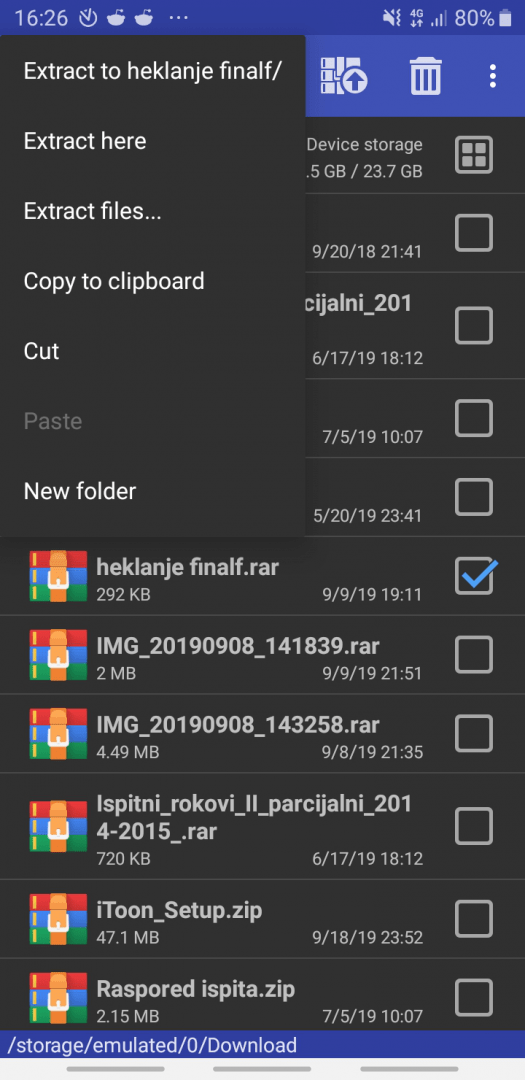
RAR is available for free on Android. The app lets you create RAR and ZIP archives, and it can unpack RAR, ZIP, TAR, GZ, BZ2, XZ, 7z, ISO, and ARJ. Upon opening it, you will see a file explorer that you can navigate to locate archive files. When you open a folder containing archives, they are placed at the top of the list for easier access.Extracting and creating archives
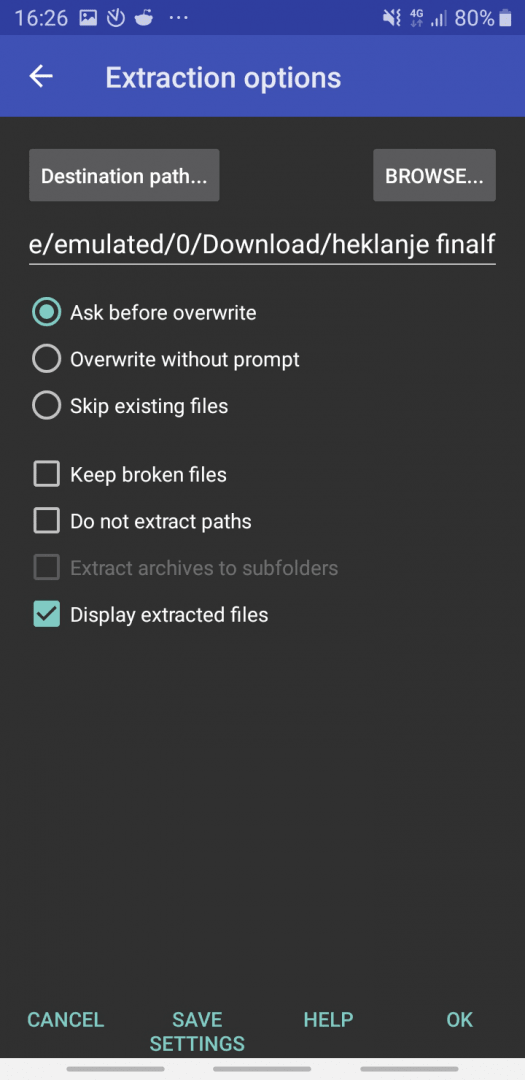
You can open an archive to view and extract individual files, or you can tap and hold the file for options to extract it in the same location or a folder of your choice. When creating archives, there is a checkbox next to files and folders inside the app, which you can use to select multiple items and add them to a new archive.Useful features and limitations
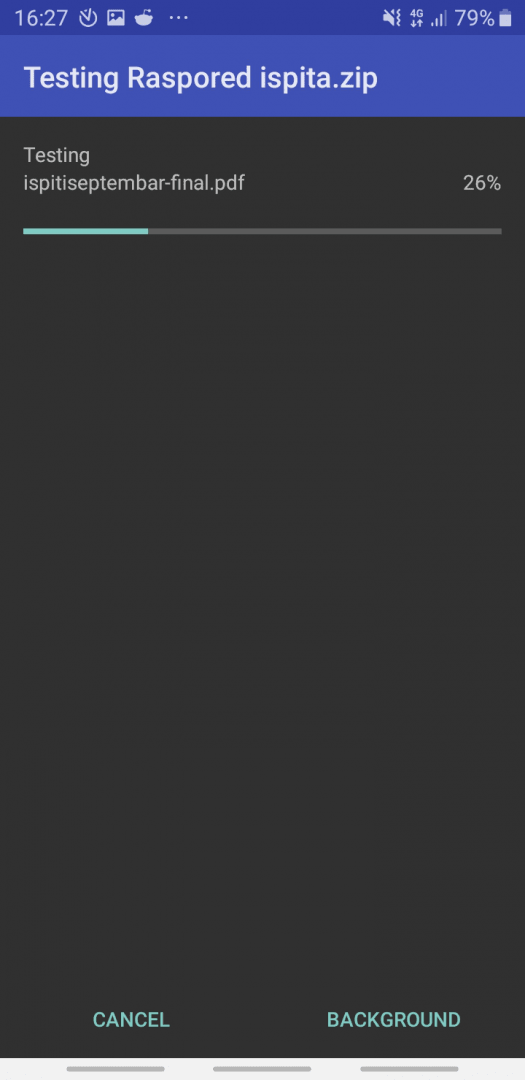
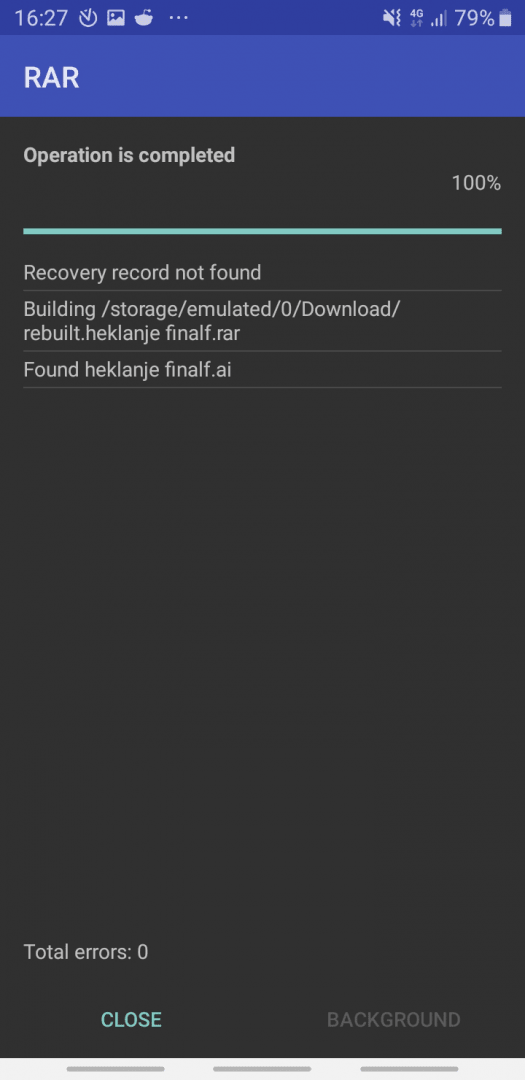
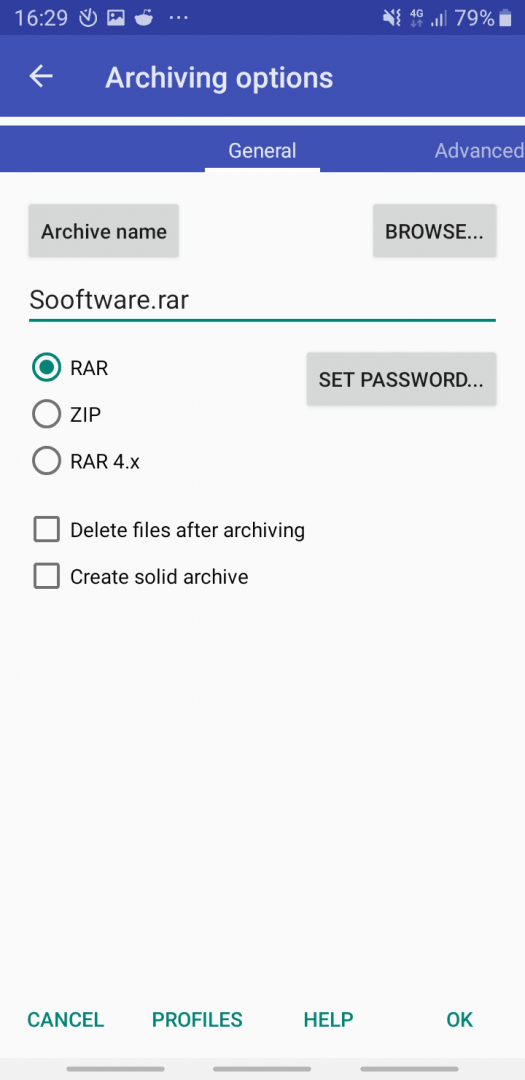
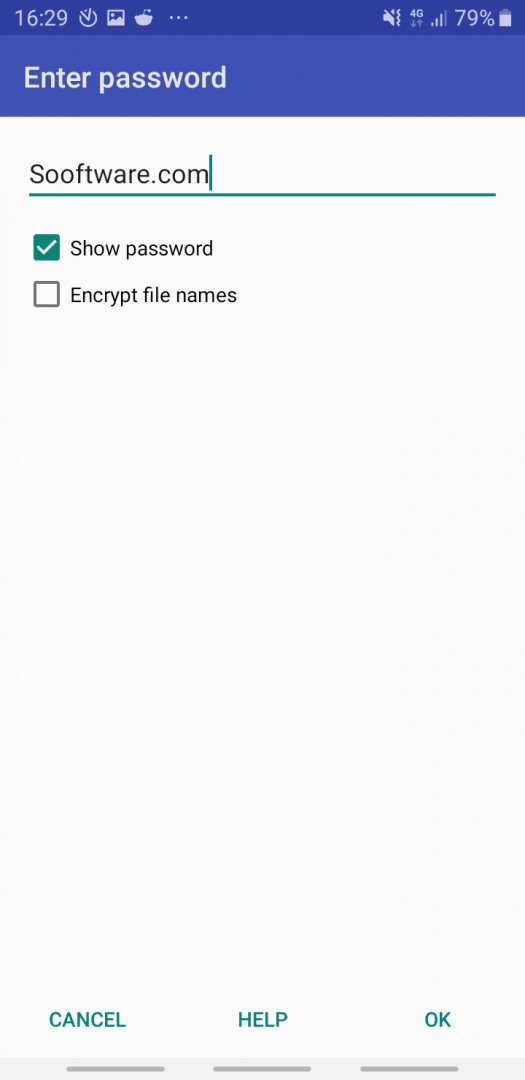
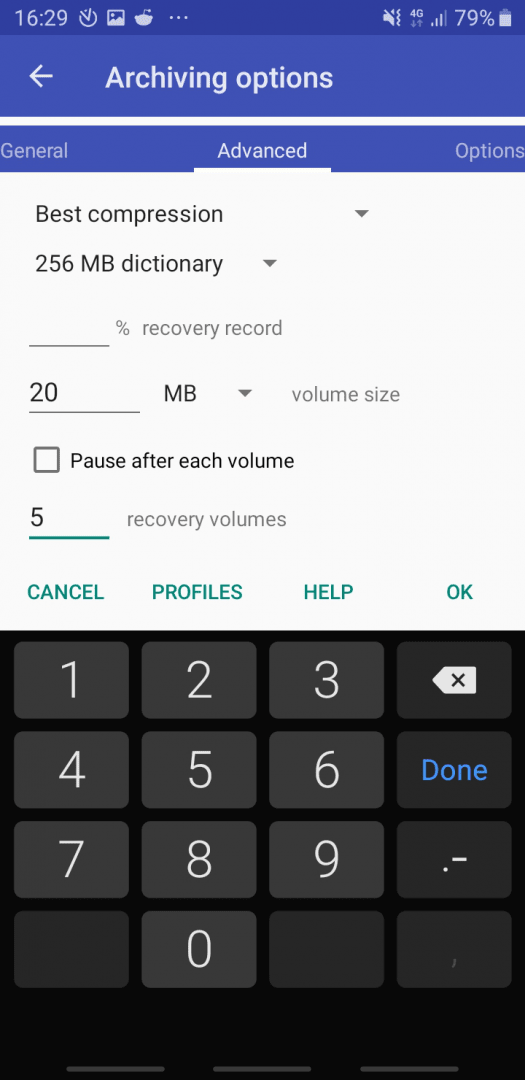
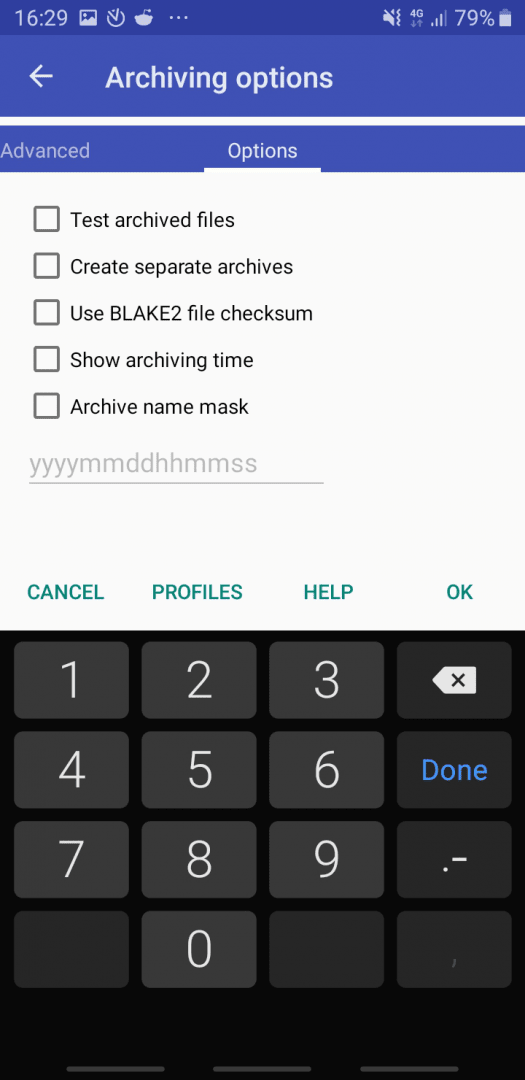
There are plenty of useful options, such as setting up a password that must be entered to access the archive later. You can also split the archive into several parts for easier sharing and copying. Besides that, you can repair or test archives on your phone to see if all the files inside are working properly. It's a shame, though, that you can't select files from different folders and add them to an archive all at once.Workarounds and ad-supported model
There is a workaround for adding files from different folders to an archive, which involves creating a single archive and then adding files one folder at a time. The app is ad-supported, but ads only appear when extracting or creating an archive. You can disable them inside the app via an affordable annual subscription.